On this page you’ll learn how to use simple search methods in SEED.
- To learn more advanced search and query syntax, visit How to use the advanced search or query syntax.
- To search for environmental data by region, visit Find data in a local area using spatial search.
Simple search methods in SEED
There are many ways to find data in SEED. The simplest ways include using the dataset catalogue and the SEED Map.
The dataset catalogue
Find the dataset catalogue through the:
- Search block on the home page, or
- ‘Search and download data’ in the top menu

You can search in the dataset catalogue using:
- Simple search with keywords, or predictive search, or
- Filters.
The SEED Map
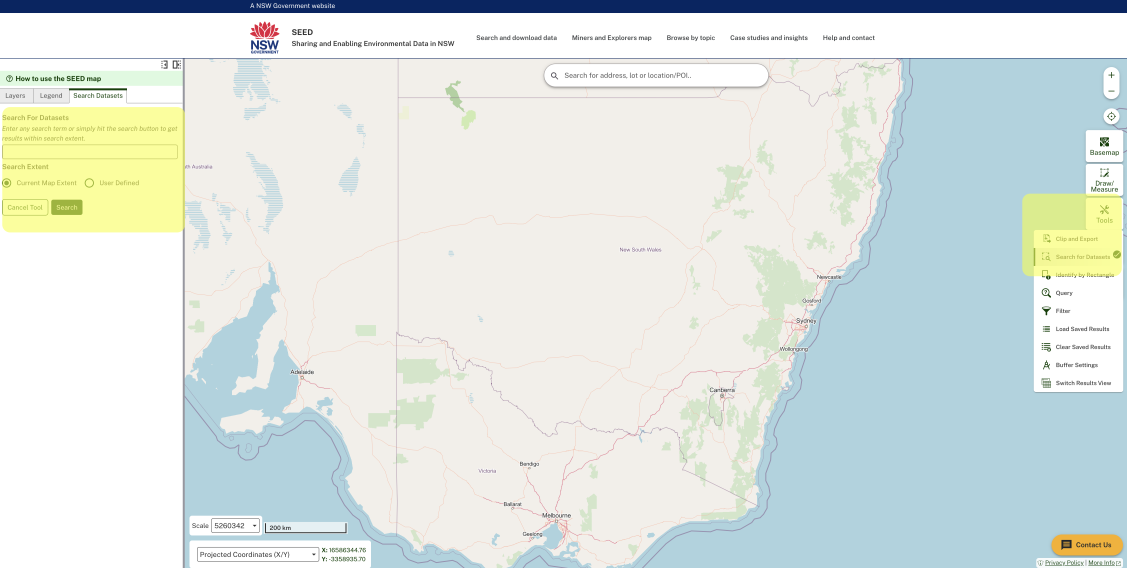
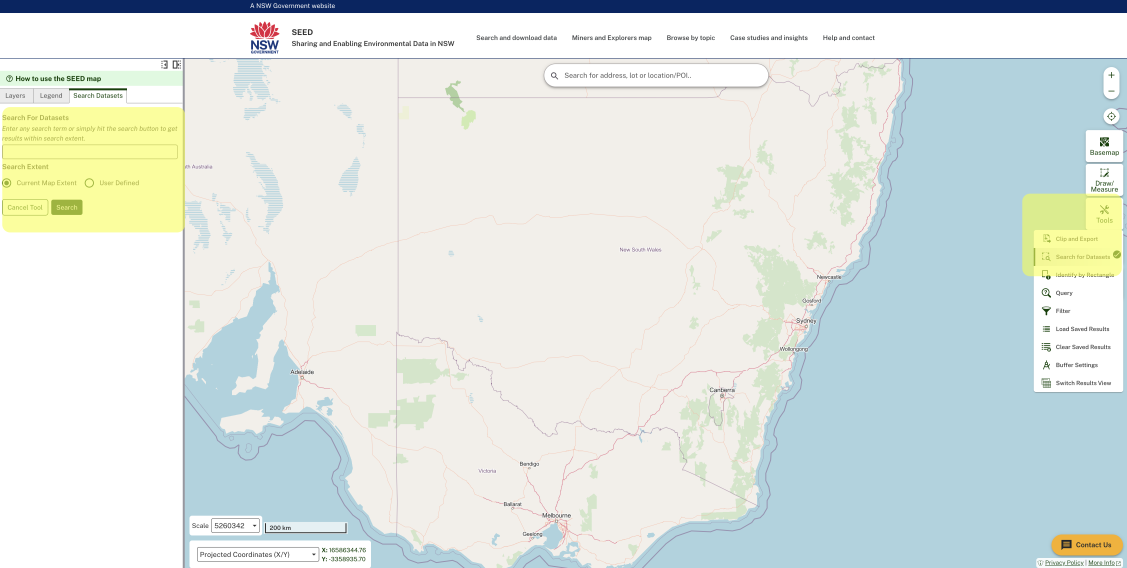
You can use the SEED Map to search for data by using ‘search for datasets’ in ‘Tools’ function. To access the SEED map via the homepage, click on ‘View on map’.
Site Search
This search function is different from a data search. Global site search only shows website information, like case studies and insights, news and updates, and help resources. This feature does not crawl and surface data from maps or datasets.

How to find data in the SEED dataset catalogue
The dataset catalogue is a searchable index of all SEED’s data files and map layers. It holds over 5,200 open-source environmental data collections in a variety of file formats and interactive tools. Learn more About the SEED portal.
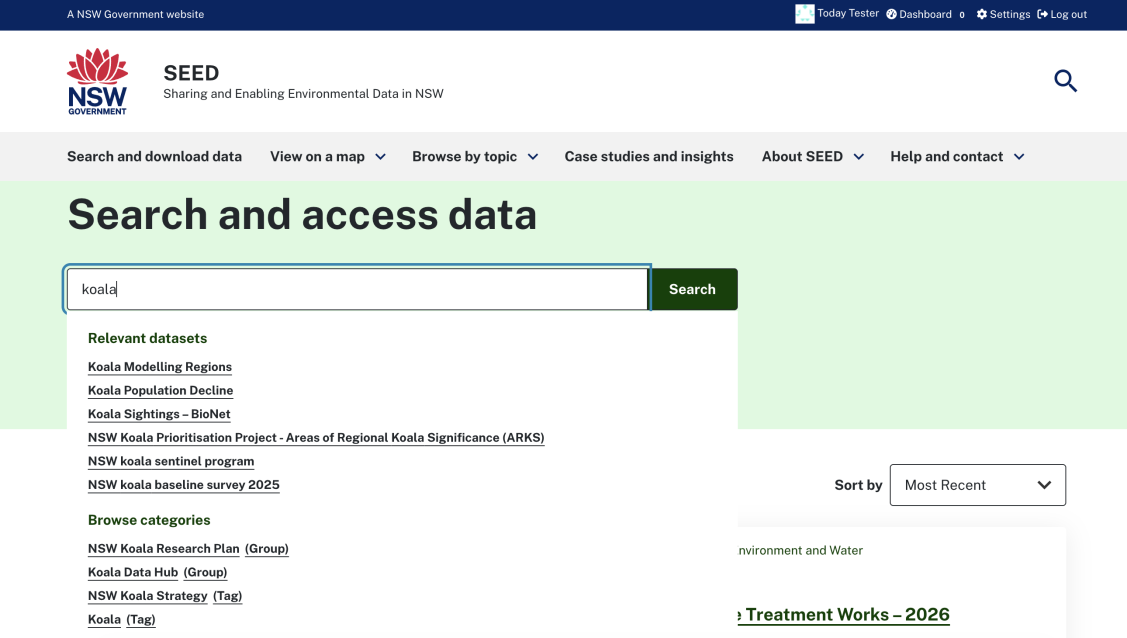
Search for datasets in SEED using keywords
Typing a keyword in the search bar or selecting ‘search and download data’ in the top menu. This will take you to the search results page.
Use the filters to refine your search by:
- collection date (the timeframe the data is collected or valid for),
- status,
- update frequency,
- location,
- file formats,
- geospatial categories,
- organisations,
- tags and
- groups.
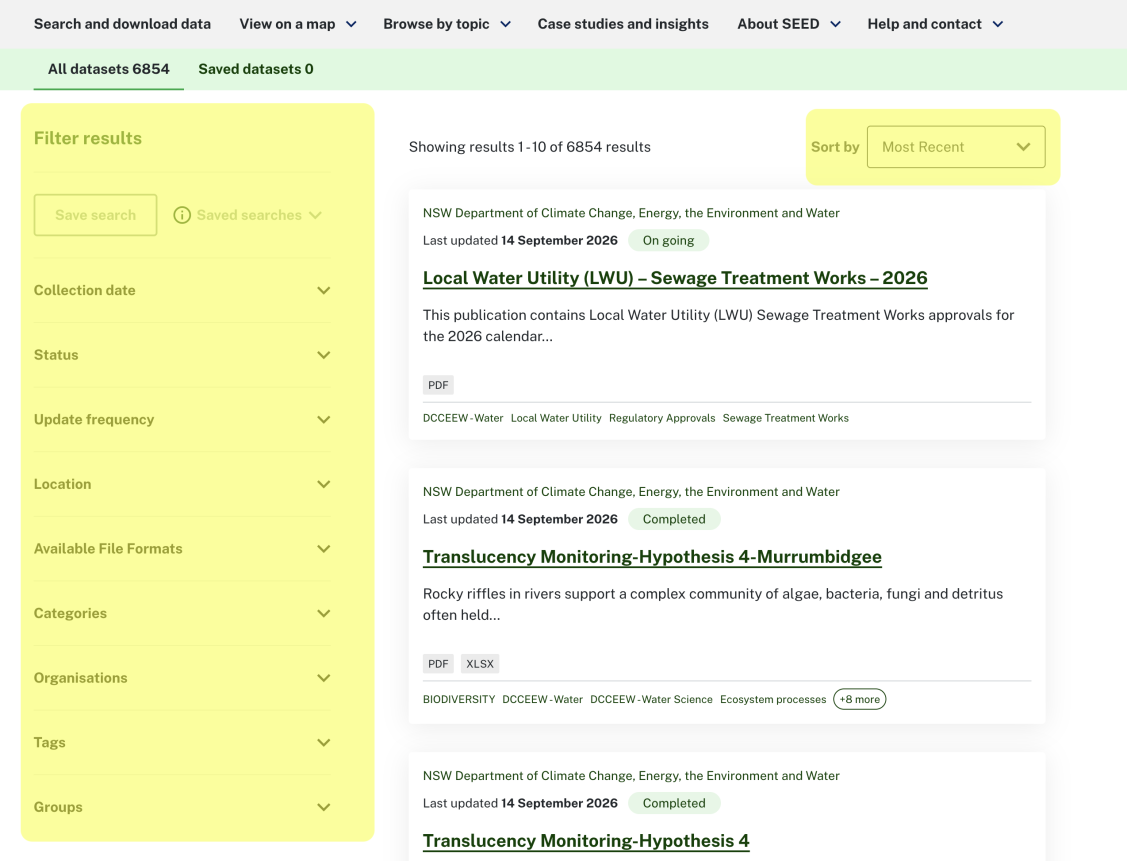
Sort your results
Use the 'Sort by' drop down to sort the order of results by recency or alphabetical.
Information on a dataset summary card
The information on summary cards includes:
Organisation
Last published date
- Dataset title
- Short description of the dataset
- Available data formats and resource files
- SEED map layer (if available). To view the data on the map, select ‘View on Map’.
- Dashboard (if available). To view the dashboard, select 'View dashboard'.
Save Search results
After using the search and any filters, click the ‘Save search’ button. This will save your current session in SEED. Login to your account to save the search permanently to return to anytime.

How to find data in the SEED Map
The SEED Map is an interactive digital mapping tool. You can use it to view and analyse open-source environmental data layers across areas of NSW. Learn more About the SEED portal.
Open the SEED Map to begin finding data
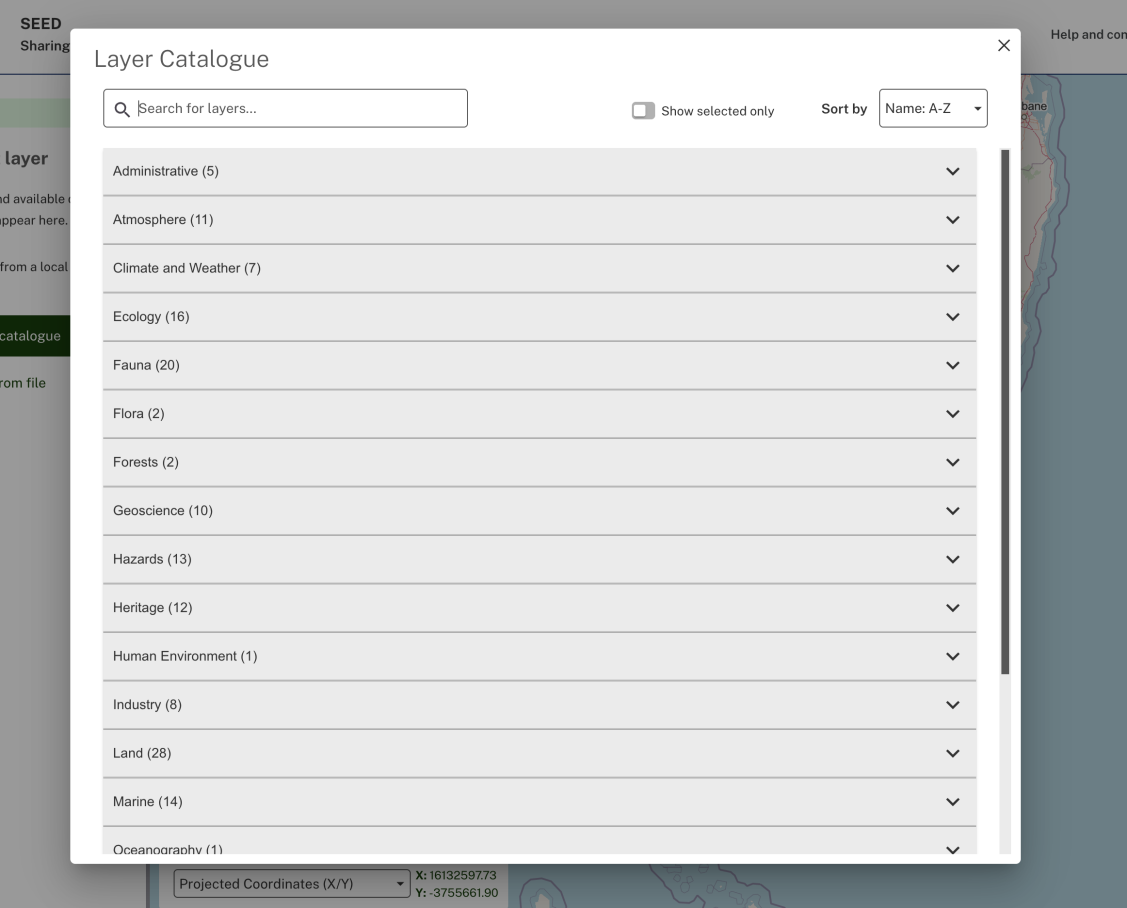
To navigate to the SEED Map from the homepage, click ‘View on a map’ tab. Then select ‘Add layers from the catalogue’
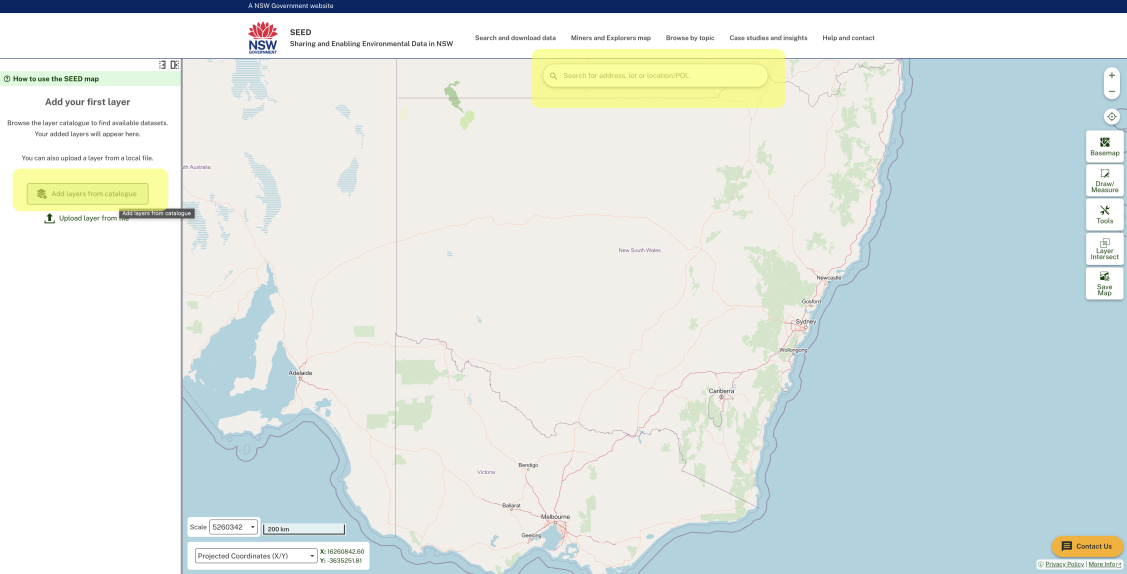
Use the search bar to find the layers you want to view from the layer catalogue.
See layer catalogue drop down
You can also use the Tools feature on the map.
- Select ‘Tools’ then ‘Search for datasets’,
- Enter your search terms.
You can use “Current Map Extent” and scroll in and out for different area views. Or you can select “User Defined” to define the exact area you’d like to view.
- Select ‘search’ to get results.
Select the metadata below your search results, then select 'toggle visibility'.
- This will show datasets and metadata that may not have available map layers.
To add layers to the SEED Map visit How to view data on the SEED Map.