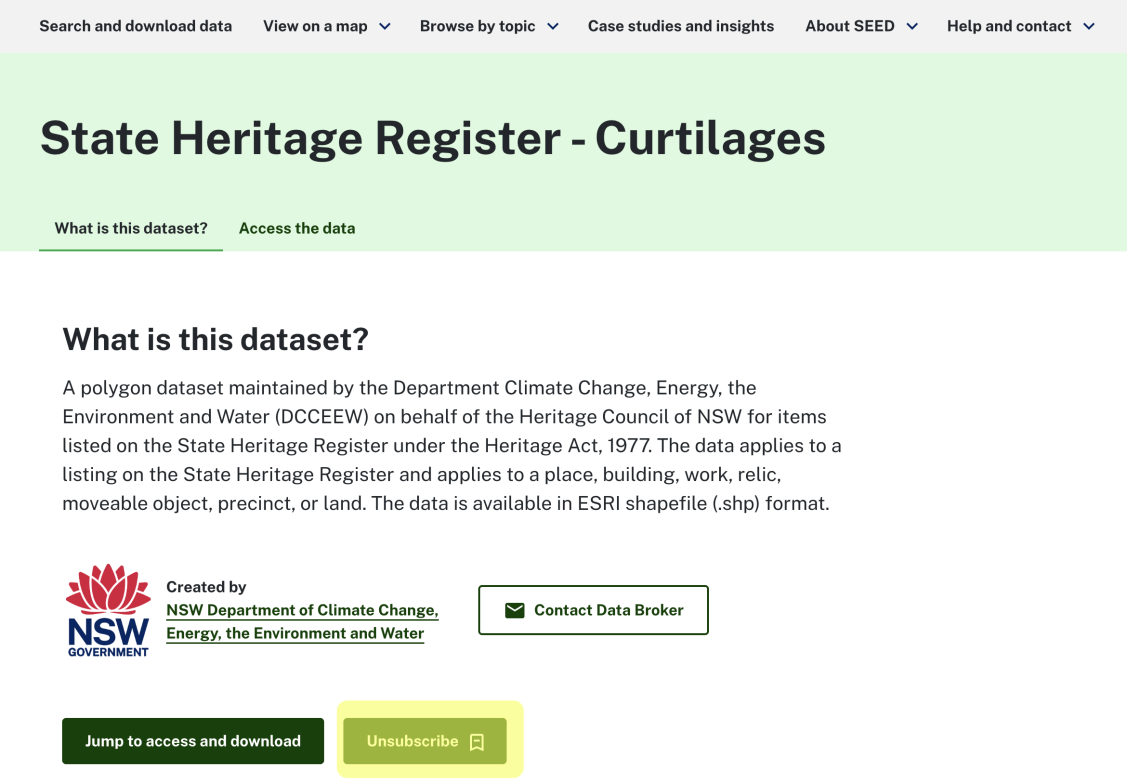
Saving and subscribing to SEED datasets and dataset filters is an easy way to:
- Save favourite data to find again
- Get notified of any updates on favourite datasets (such as changes to metadata descriptions or attachments).
Save and subscribe to datasets as a current or returning account user
- Log into your SEED account.
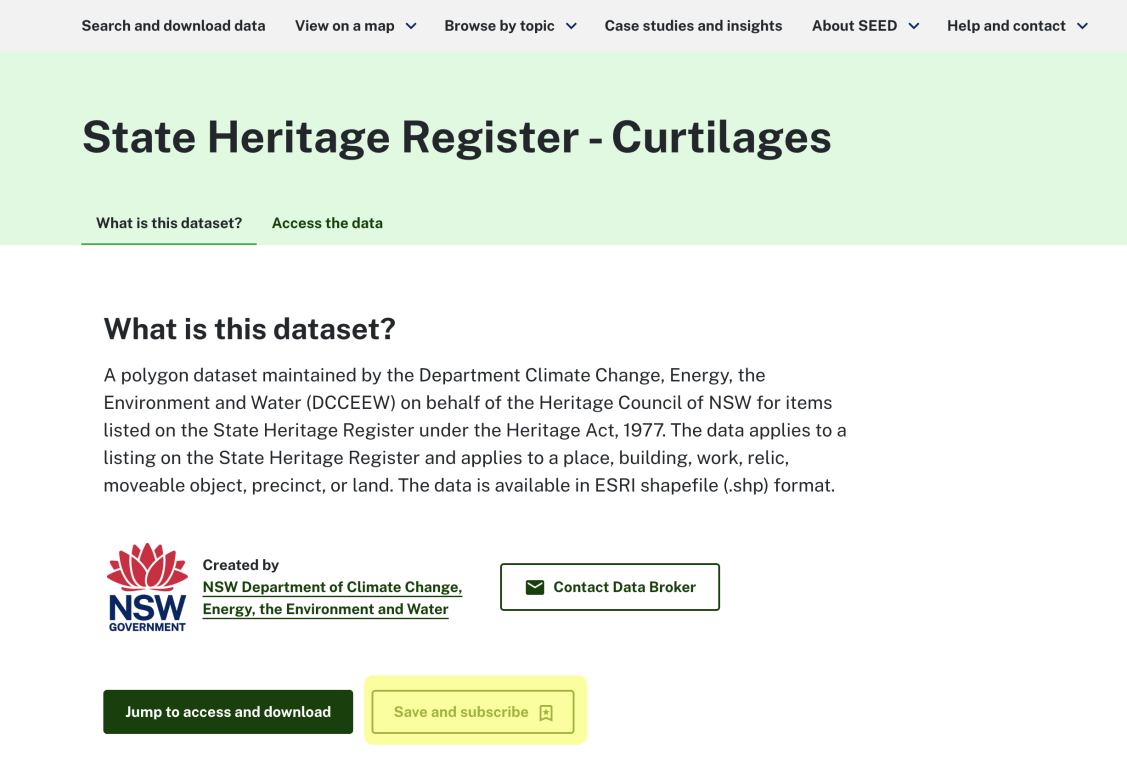
- Find the dataset you want to subscribe to, scroll down until you find the ‘save and subscribe’ button.
- If you’re already on a dataset and not logged in you can select ‘save and subscribe’ on a dataset. This will prompt you to log in.
Save and subscribe to datasets as a new user
Register an account on SEED
- Select the ‘login/sign up to SEED’ button in the top right-hand corner.
- Follow the steps to create or log in to your account'

- Select your notification preferences, frequency and opt in for notifications from specific organisations, groups or LGAs (local government areas). Preferences can be edited in your account management area at any time once you have created an account.
- Once logged in you will be taken to your dashboard and newsfeed. Here you can access your profile, activity stream, and subscriptions to datasets, organisations and groups. To manage your profile or subscriptions any time, click on the ‘Profile and Notification Settings’ menu on the dashboard or the cog icon in the top right-hand corner.
Save and subscribe to a dataset
- Now you can find the dataset you want to subscribe to.
- Scroll down until you find the ‘save and subscribe’ button on any dataset page.
View your saved datasets
From 'Search and access data'
- Log in to SEED
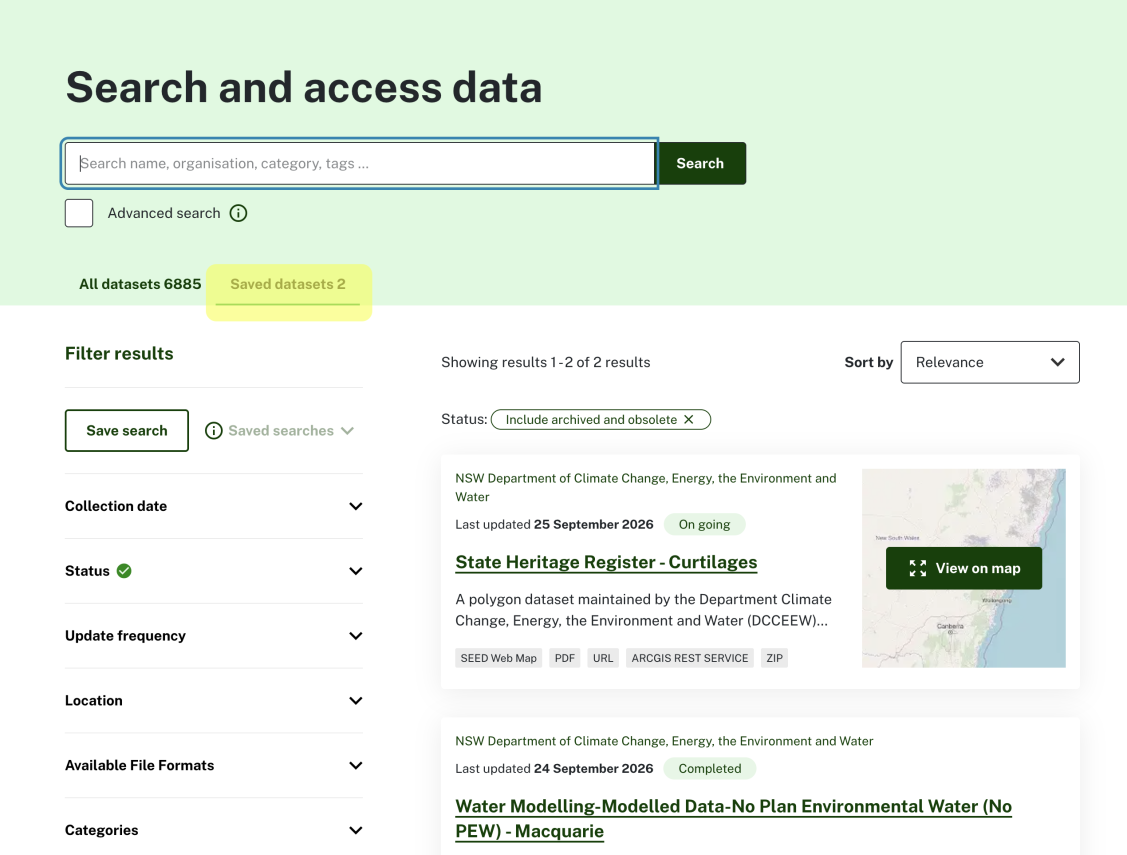
- Go to the ‘Search and access data’ section and click the ‘Saved datasets’ tab.
How to view subscription notifications or updates
To subscribe to notifications or updates you must be logged in to SEED. Notifications appear in the top bar or on your dashboard.
Top bar notifications
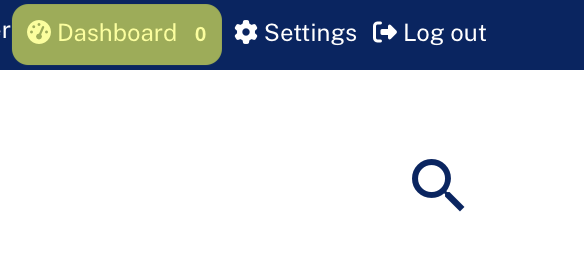
If you are not on the newsfeed when a notification comes through, you will have a notification in the dashboard icon at the top right-hand corner.
On your dashboard newsfeed
Here you will see notifications for any changes to existing datasets you have subscribed to.
View the current version from these notifications by clicking ‘view this version’ and changes to this dataset by clicking on ‘changes’.
Click on ‘changes’ to view the dataset change page.

On this page, you can select the time frame for changes you want to see as well as the detailed metadata changes.
How to unsubscribe from a dataset
You must be logged in to SEED to unsubscribe from datasets.
- Navigate to your dashboard and click the ‘my datasets’ tab
- Select the dataset you want to unsubscribe from. This will take you to the dataset record where you can click ‘unsubscribe’.
- You can also navigate directly to the record in the dataset catalogue to unsubscribe.