The advanced search and query syntax help you find more accurate and relevant results. These search methods return metadata results from the search and download section (also called the dataset catalogue).
To learn how to use simple search methods in SEED, visit How to find data in SEED.
About advanced search
The advanced query builder will help you find more specific search results. You can search and add layers by:
- title
- description
- keyword
- topic
- purpose
- data type, or
- documents (excluding data quality statements).
How to use the advanced search
Tick the ‘advanced search’ box and enter your keyword/s into the search bar
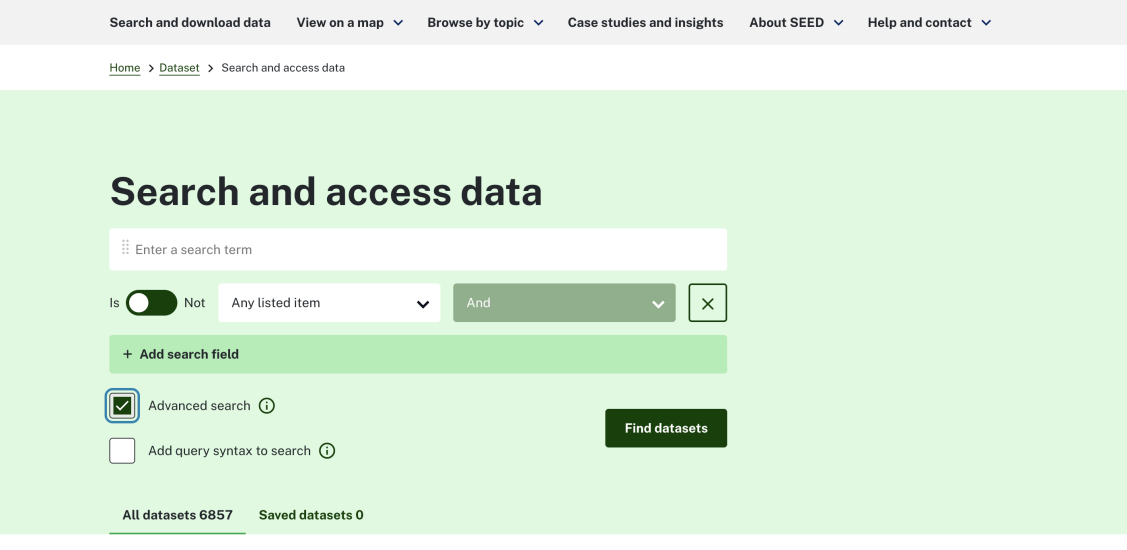
Narrow your search with 'IS/NOT', 'And' and 'Or'
Use the ‘IS/NOT’ toggle to tell the search what your keyword is and is not.
Use the 'And' and 'Or' drop down to specify conditions:
- 'And' means both conditions must be met, and
- 'Or' means only one condition must be met
Select ‘+ Add search field’ to include more rules.
For example, ‘catchment’ IS the topic, but ‘ecological’ IS NOT in the title.
To remove a level
Select ‘X’ to remove a level.
Reorder the levels by dragging and dropping the search boxes.

How to use the query syntax search
The query syntax feature uses SOLR syntax to create complex search queries and drill down into data by including or excluding specific parts of results.
Tick the ‘add query syntax to search’ box.
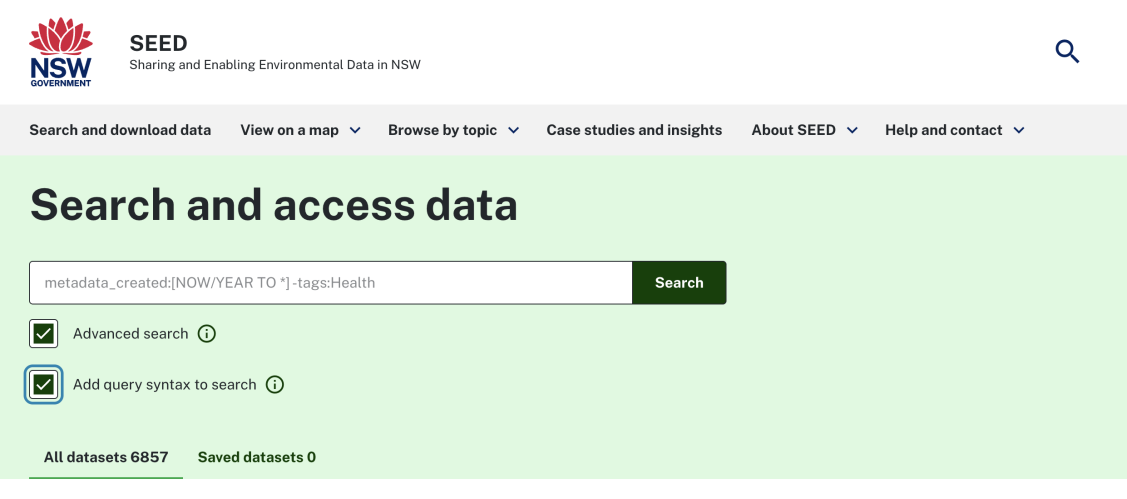
The search bar converts advanced search levels into a syntax query string. It tells the search filters if a value:
- matches a specific condition (+ = is), or
- excludes a specific condition (— = is not).
Learn more common query parameters for your search.
Select ‘search’ once you’ve added your query.
To find search terms:
- Open a record
- Select on metadata summary
- Select export metadata > JSON.