Data published to SEED, whether from government or external organisations, includes:
- a metadata statement that provides a standard set of information, and
- a data quality statement that determines how it fulfils its original intended use.
These statements support SEED users to categorise, compare and understand the quality of the data and if it is fit-for-purpose. We recommend submitting these statements at the same time.
About metadata statements and data quality statements
Metadata statements include information about the contents, origin and structure of the data. Learn more About metadata statements.
The information in data quality statements (DQS) tell users how governed, accurate, accessible, coherent, interpretable and trustworthy data is. Learn more About data quality statements.
How to publish metadata statements to SEED
In this section, you'll learn how anyone outside of DCCEEW can publish metadata statements to SEED.
If you are from DCCEEW contact the "OEH BIS Data Broker Mailbox" [email protected] to publish to SEED.
Before you begin
You need to apply for an editor role in SEED. To do this you need to:
- Create or already have an account in SEED
- Email the SEED team ([email protected]) to request editor access for your account and tell us which organisation you want to publish under.
- If you want to publish data under a new organisation not currently in SEED please share:
- The organisation’s name
- A description of the organisation
- Logo (attach a thumbnail image to the email)
- Jurisdiction (NSW only or Australia wide)
- General email for open data enquiries
- General contact number for open data enquiries
- Contact name at the organisation.
Complete the metadata statement
Log in to SEED

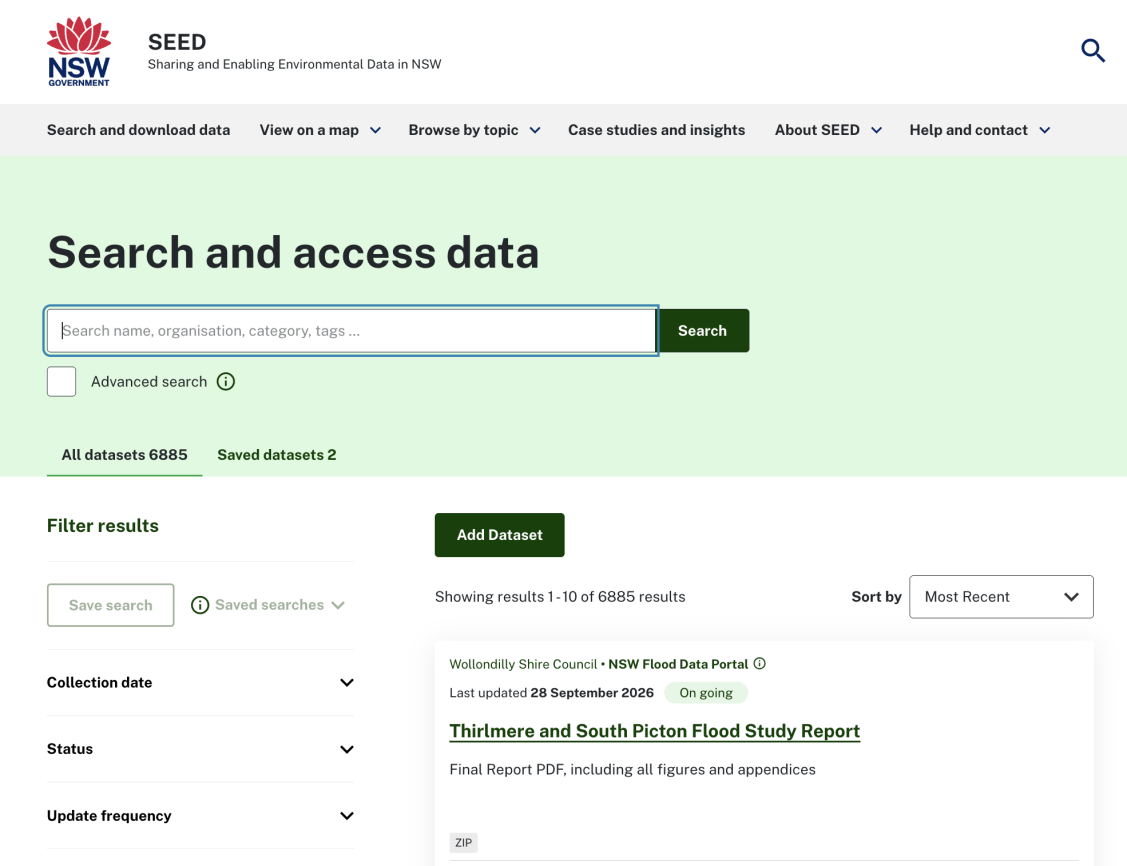
Click ‘Add dataset’ button for the Data Catalogue page.
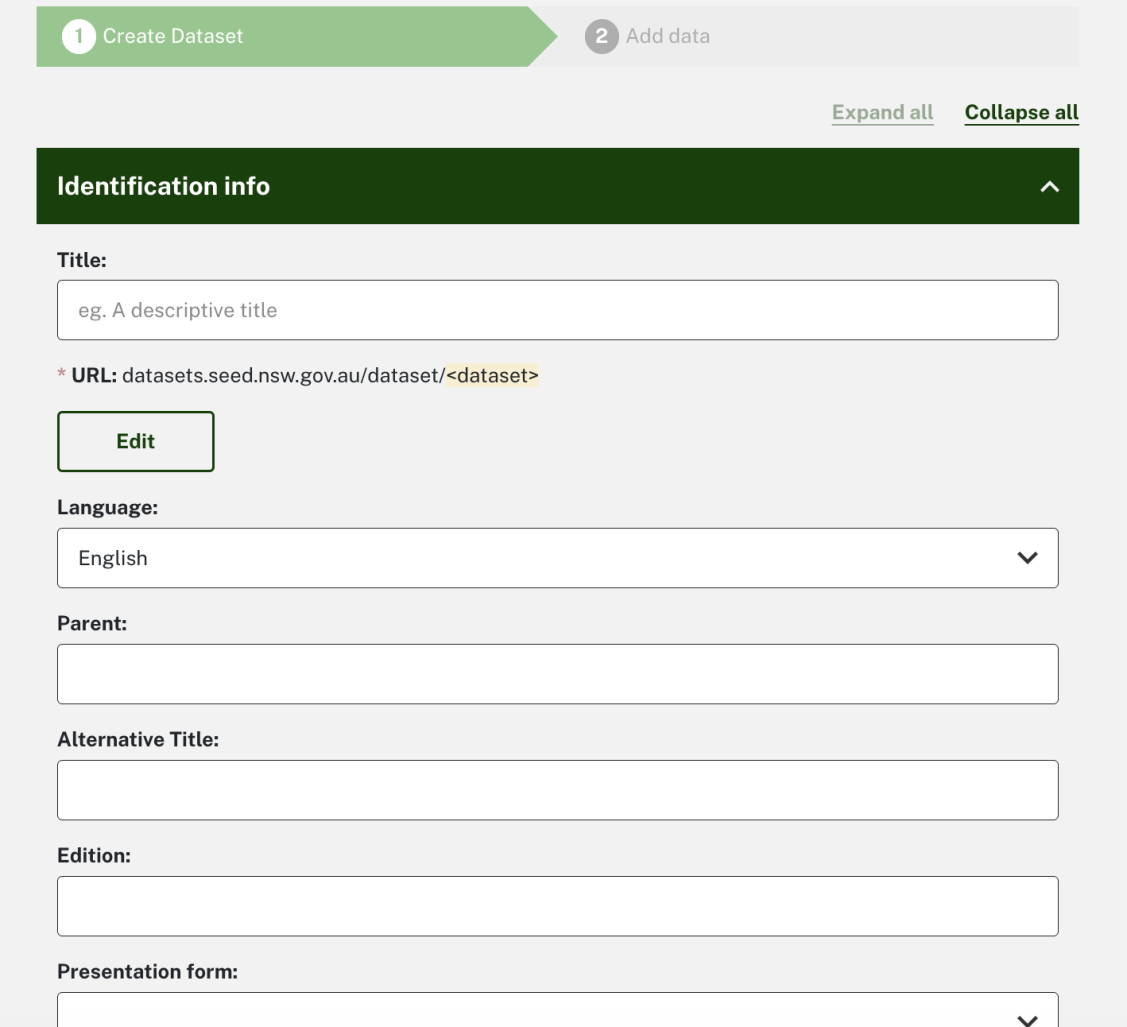
Fill in the metadata statement form
Add as much information as you can. Required fields include name, description, organisation and if you want to publish to Data NSW.
Click save
Once you've completed the form, select the ‘Save’ button.
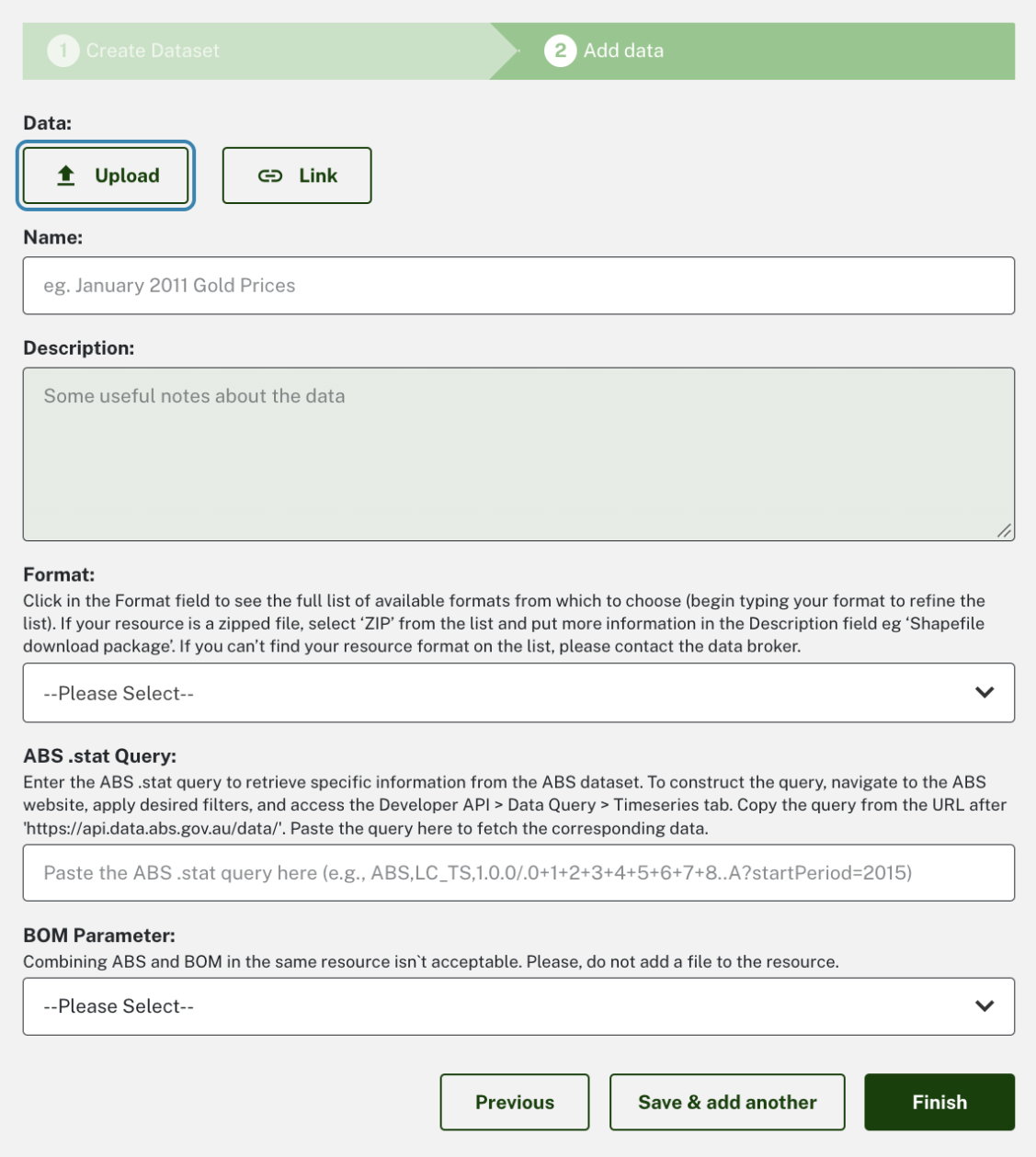
Upload or link relevant resources
You should upload or link relevant resources, including datasets, related URL links or documents like reports and data dictionaries.
- Files must be 7GB or under.
- Add resources one at a time. For each, include a name, description and format for each resource or link.
Save or add another. Once you're done, select finish
Steps are complete
Your dataset page will open.
Now add the data quality statements.
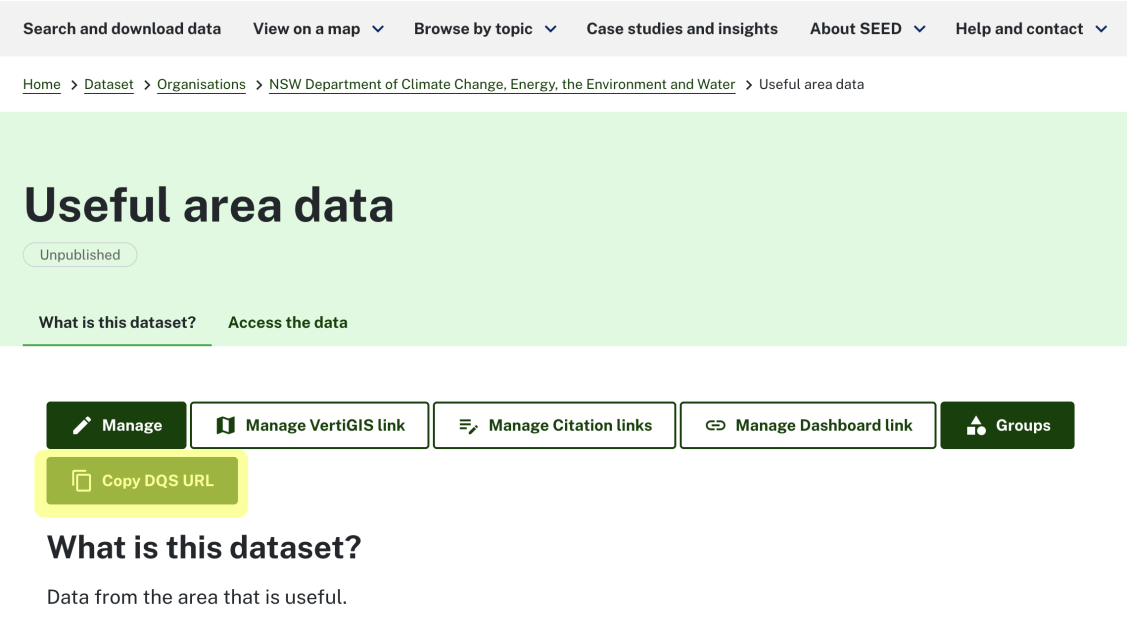
From this dataset page, select ‘Allow DQS’. The button will change to 'Copy DQS URL'.
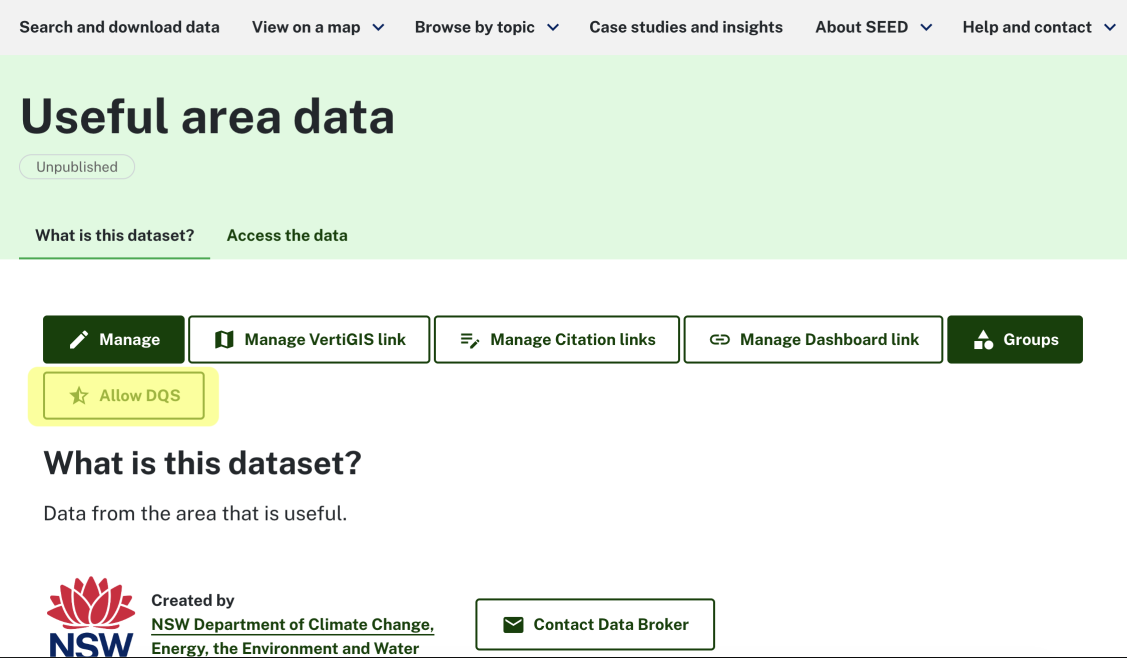
Select 'Copy DQS URL'.
This will copy a link. Now open a new browser tab and paste the URL in. This will open the DQS form.
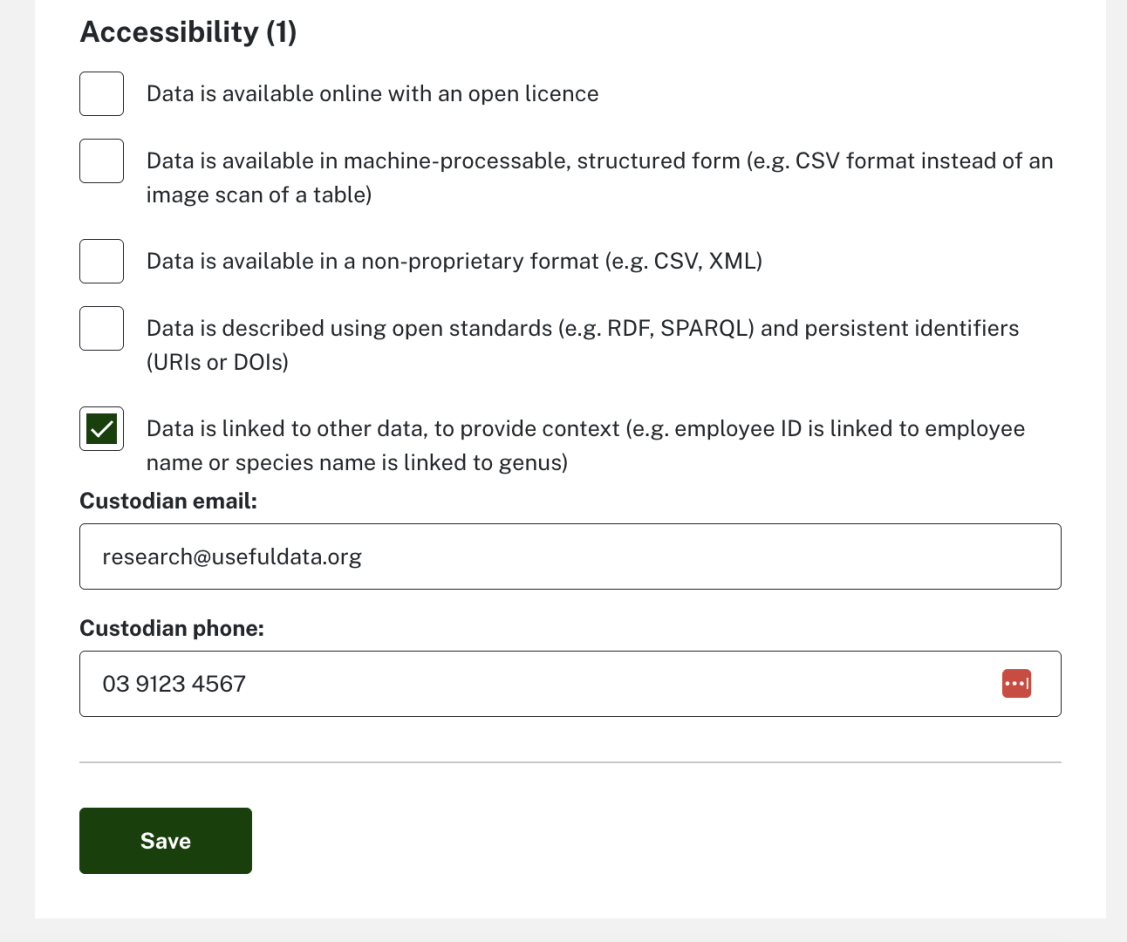
Fill in the form
Fill in the form by selecting the which criteria your data meets. The score improves based on the criteria you select.

When you're finished, select SAVE at the bottom of the page.
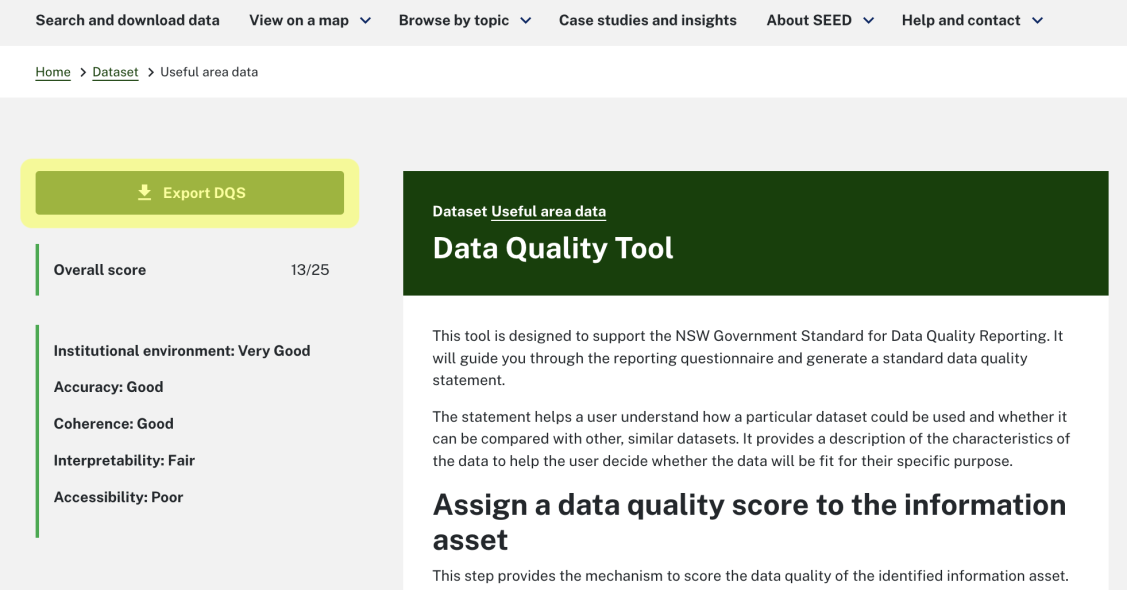
Scroll to the top of the page and select 'Export DQS'.
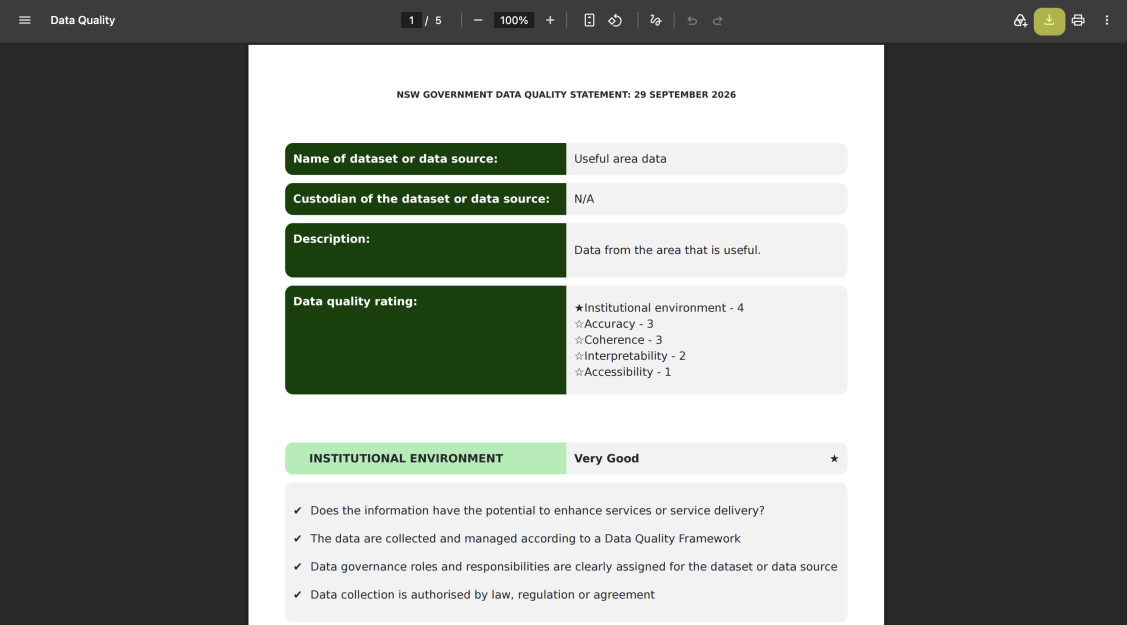
This opens the DQS PDF in a new tab. Download the PDF onto your device.
Navigate back to the metadata statement and select ‘Manage’.
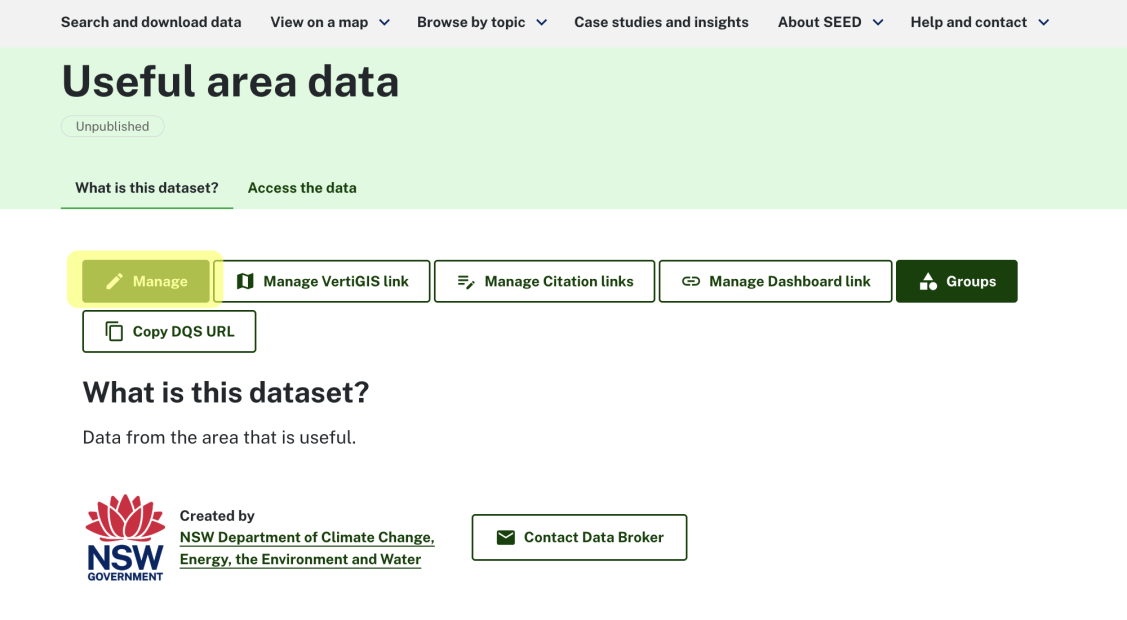
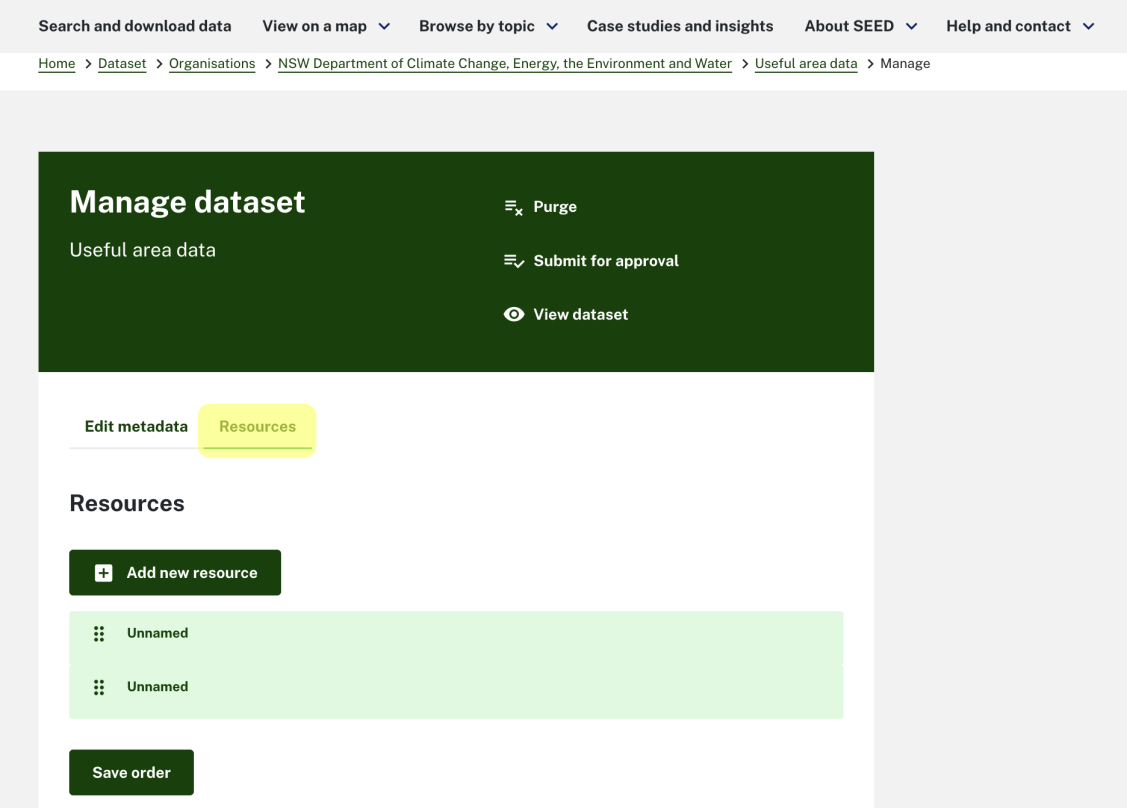
Select ‘Resources’ then ‘Add new resource’. Upload the DQS from your downloads.
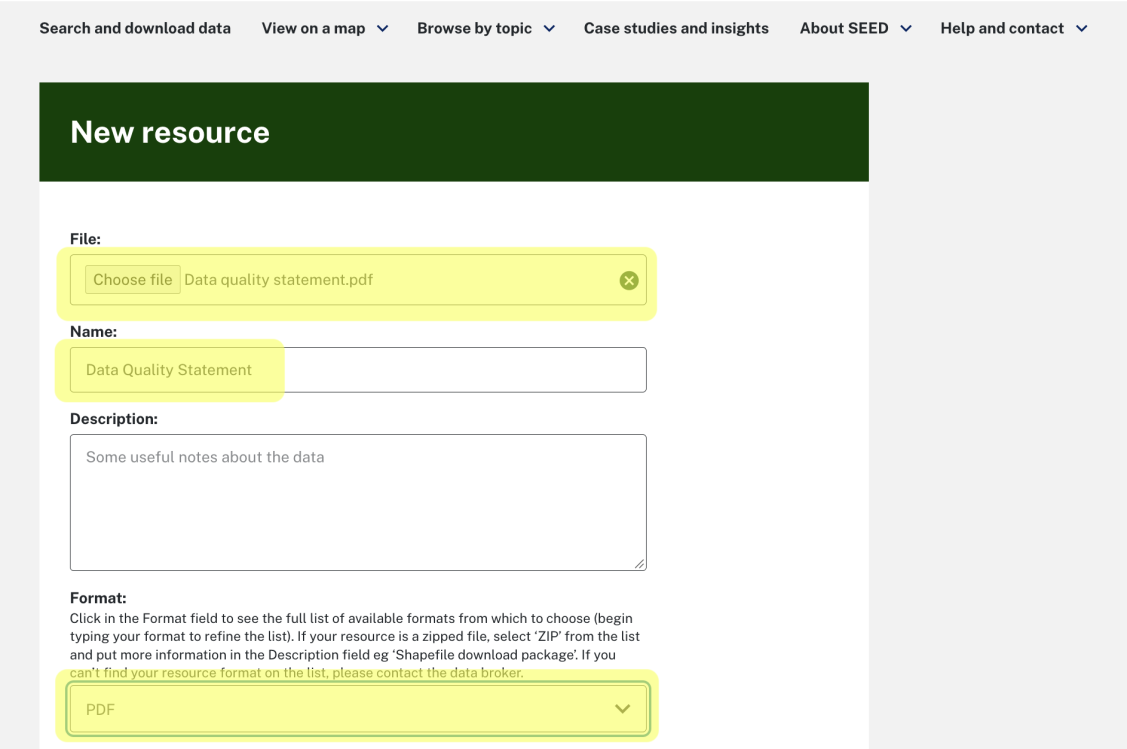
Your must name the file ‘Data Quality Statement’ (do not use any other name) then select PDF in format.
You can then view the DQS in the ‘At a glance’ section on the metadata page.

Learn how to Publish your data on SEED.